Ocarina of Time Switch 2 controls: every button, gyro aiming and ocarina tricks
Nintendo kept the 1998 lock-on combat but rebuilt movement around two sticks, and a few menu switches decide how the remake feels in your hands.
The Switch 2 remake of The Legend of Zelda: Ocarina of Time plays like a modern Zelda game. In the default layout shown in previews of the game's Basic Controls screen, X jumps, Y swings the sword, holding A after a roll breaks into a sprint, ZL locks on to enemies and ZR uses the item you've selected. The right stick now turns the camera freely, D-pad left pulls out the ocarina, and motion aiming for the slingshot, bow and Hookshot is on by default and can be switched off in Options. You can also play ocarina songs by humming, whistling or playing a real instrument into the console's microphone.
Nintendo released the game on November 5, 2026, for $59.99, and it runs only on Switch 2. Its store listing calls it playable without motion controls and without touch controls, so every setting below is a matter of taste, not a requirement.
Ocarina of Time Switch 2 controls: the default button layout
Nintendo hasn't posted a full control chart on its website, so the layout below comes from the in-game Basic Controls screen as it appeared in previews published before launch. The parts Nintendo spells out in its own support pages, such as the ocarina on the D-pad and items on ZR, match it.
| Input | What it does |
|---|---|
| Left stick | Move Link |
| Right stick | Turn the camera; click it to recenter behind Link |
| Y | Attack with the sword |
| X | Jump |
| A | Roll, talk, open, climb and other context actions |
| Hold A | Sprint |
| B | Put away the item in your hand |
| ZL | Lock on to a target and raise the shield |
| ZR | Use the selected item |
| L and R | Open the item selection menu |
| D-pad left (Left Button on Joy-Con 2) | Play the ocarina |
| D-pad right | Talk to Navi |
| Minus | Map |
| Plus | Main menu, including System and Options |
If you come from the Nintendo 64 version, the biggest change is that the sword left the B Button. If you come from Breath of the Wild or Tears of the Kingdom, the layout will feel close to home, which is the point. Nintendo's developers said in their Ask the Developer interview that they carried Link's jump over from the recent games so players could adapt smoothly.
How to jump, dash and jump attack
The original game had no jump button. Link leapt on his own when you pushed the stick toward certain ledges, which meant the game decided where jumping was possible. The remake drops that auto-jump. Director HokWai Ng explained that players used to recent games would wonder why Link could jump in one spot but not another, so the team made it possible to jump anywhere with a single button press. That's X by default.
Two details matter once you start platforming. Art director Aya Shida said Young Link and Adult Link don't jump quite the same distance, which made sizing every gap a balancing act for the team. And because Link can now hop anywhere, the developers had to anticipate jumps everywhere and adjust the environment to match. Aonuma admitted auto-jump had been convenient for the team, since it kept players out of places they weren't meant to reach.
Dashing builds on the old habit of rolling across Hyrule Field. You can still roll with A, and holding the button after a roll keeps Link running. Nintendo describes this as a new dash ability for covering long distances on foot, and the forward roll still works for anyone who prefers the classic rhythm.
The Jump Attack, the overhead slash that does extra damage, works two ways, and neither gets in the way of the other:
- The Breath of the Wild method: jump with X, then press attack in midair.
- A single-press method that brings back the feel of the original, added after producer Eiji Aonuma told the team the two-step version didn't feel as satisfying.
Producer Hidemaro Fujibayashi said he preferred jumping first and attacking second, and the team kept both so that veterans and newcomers could each play the way they're used to.
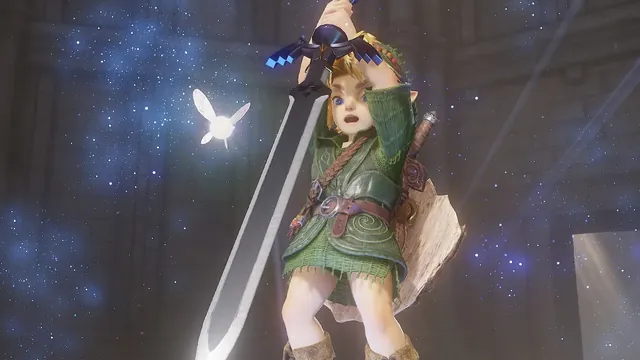
Camera controls and Z-targeting on Switch 2
Ocarina of Time introduced Z-targeting in 1998, the lock-on system that swings the camera behind Link so he can circle and strike an enemy without you managing the view. The Nintendo 64 controller had only one stick, so free camera control wasn't an option. Aonuma recalls tuning that camera until the last minute of development.
On Switch 2 the right stick turns the camera at any time, and clicking it snaps the view back behind Link. Lock-on moved to ZL, the same spot it occupies in recent Zelda games, and it also raises the shield once you have one. Previews of the Options screen show a Targeting Type setting with Hold and Toggle choices.
The free camera changed more than the controls. Aonuma noted that the original fixed the camera at certain points, while the remake lets you look around rebuilt, denser areas from any angle. Program director Hiroki Taguchi said the team worried players could lose their bearings, for example after a dungeon door opens and the room no longer faces the way you came in. The fix was level design: objects are placed so the direction forward reads at a glance. The Options menu also covers vertical and horizontal camera inversion and rotation speed.
Gyro aiming: how to turn motion controls on or off
Ranged tools can be aimed two ways. Nintendo's listing says the Fairy Bow, the Hookshot and other ranged weapons can be aimed with button controls or with motion controls, meaning the gyroscope in the controller: tilt the Joy-Con 2 or the Pro Controller and the reticle follows. Nintendo's UK page adds the Fairy Slingshot to the list and pitches motion aiming as the precise option.
Previews of the Options screen show Motion-Control Aiming switched on by default. To change it, press Plus, go to System, then Options, and flip the setting. With it off, you aim with the stick alone.
Two points worth knowing:
- The game's store listing marks it as playable without motion controls, so turning gyro off never locks you out of a puzzle or a boss.
- There's no touchscreen requirement either. The listing also marks the game as playable without touch controls.
How to play the ocarina: buttons, humming or a real instrument
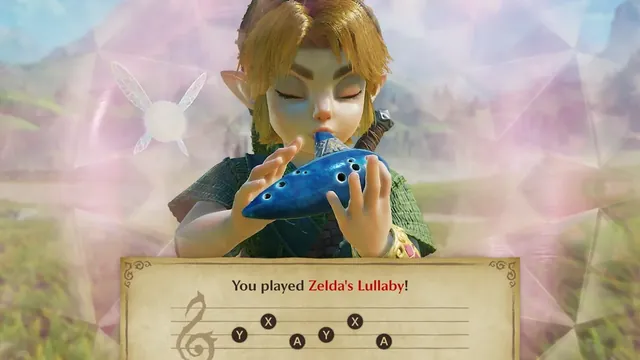
The ocarina arrives roughly one to two hours into the adventure, according to Nintendo's support page. From then on, press left on the Pro Controller's D-pad, or the Left Button on the left Joy-Con 2, to bring it up. Each note maps to a button shown on screen, and the Swap Ocarina-Playing Controls setting in Options switches between two button styles.
The bigger novelty is the microphone. In Nintendo's developer interview, Ng recalls Aonuma walking over to his desk about a year earlier to suggest using the console's built-in mic for voice recognition. Turning it on takes four steps:
- Press Plus to open the menu and go to System.
- Select Options.
- Set Ocarina Mic Input to Humming or Instruments. The game also prompts you to enable it once you've learned your first song.
- Press B twice to leave, then press left to raise the ocarina.
Hum, whistle, sing or play an instrument, and Link performs any song he has learned once the game recognizes it. Pressing Minus on the performance screen opens Practice Mode, which shows whether your pitch and note length are being read correctly.
Nintendo recommends the console's built-in microphone and staying within 8 feet of the system in TV or tabletop mode, with nothing blocking the mic. A headset with its own microphone, plugged into the console or into a Switch 2 Pro Controller, can take over the input. If that happens, open System Settings, choose Audio and set Input Microphone to System Microphone.
Aonuma has been candid that the mic doesn't make the adventure any easier. It's there because playing a song out loud makes Hyrule feel closer.
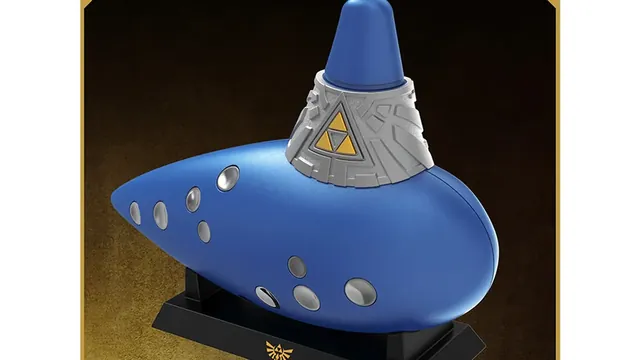
Electric Ocarina of Time: is it a controller?
The Electric Ocarina of Time is a $49.99 accessory sold on Nintendo's store, and it talks to the game through the same sound recognition as your humming. Play a song on it, the Switch 2 hears it, and Link performs the matching song in the game. Nintendo's listing is explicit that it's an electronic toy and not a game controller, so it doesn't replace your Joy-Con 2 for anything but songs.
You don't blow into it. You press the mouthpiece button and touch the finger buttons to sound notes. It has two modes, Free Play for playing anything you like and Auto-Play, which performs 12 songs from the game at the press of a button. A volume dial and a headphone jack for headphones or an external speaker round it out. Three AA batteries and a screwdriver are needed and not included. As of November 7, 2026, Nintendo's US store lists it as out of stock.
Which controllers work with Ocarina of Time on Switch 2
The game supports all three play modes: TV, tabletop and handheld. Nintendo's support pages for the game name four controllers, each with a built-in NFC reader for amiibo, and every one of them can be remapped in System Settings under Accessibility, then Button Mapping, with up to five saved presets per controller.
| Controller | Where the amiibo reader sits | Remappable back buttons |
|---|---|---|
| Joy-Con 2, included with the console | Right stick | None; the Joy-Con 2 Charging Grip adds GL and GR |
| Nintendo Switch 2 Pro Controller, $89.99 | Top center, over the logo | GL and GR |
| Original Switch Joy-Con | Right stick; wireless only on Switch 2 | None |
| Original Switch Pro Controller | Top center; reader off over a wired connection | None |
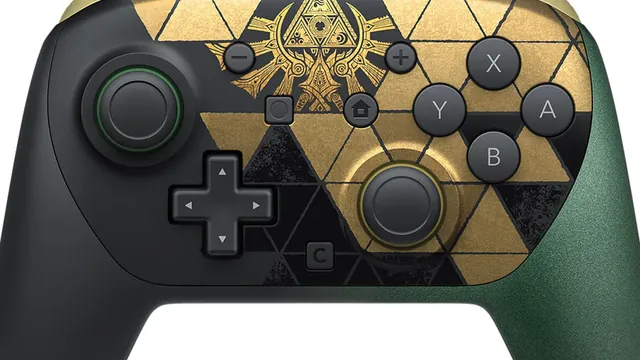
The Switch 2 Pro Controller is the only one of the four with GL and GR, two extra buttons on the back. Nintendo's listing says you can map them to any button you choose. One idea for this game is putting jump or the sprint on a back button so your thumb never leaves the camera stick. You assign them from Quick Settings while the game is running: hold the HOME Button. If you're shopping for a themed pad, our look at the Zelda Switch 2 Pro Controller covers its price and stock.
Best settings to change first
The defaults suit players coming from Breath of the Wild. Veterans of the 1998 game may want a few tweaks, all under Plus, then System, then Options:
- Swap Jump Controls moves jump to B and put away to X, the in-game text says, if your thumb expects to jump from the bottom face button.
- Targeting Type set to Toggle keeps the lock-on active after a single tap of ZL, so you don't have to hold the trigger through a long fight.
- Motion-Control Aiming off, if you'd rather aim the bow and Hookshot with the stick.
- In-game interface at Pro or Master trims the on-screen display, in previews of the menu, for a cleaner view of Hyrule.
The game's latest update, version 1.1.1 from November 4, 2026, added support for the ZELDA NOTES service in the Nintendo Switch App, and Nintendo's notes for it list no control changes. For how critics rate the remake as a whole, see our roundup of Ocarina of Time remake review scores, and if you're still hunting for the green and gold console, our Switch 2 Zelda Edition restock guide tracks every US retailer.
FAQ
Can I play Ocarina of Time on Switch 2 with an original Switch Pro Controller?
Nintendo's support pages treat the first-generation Joy-Con and Pro Controller as working controllers for the game, including for amiibo scans. The older Joy-Con connect to Switch 2 wirelessly only.
Does Ocarina of Time on Switch 2 support Joy-Con 2 mouse controls?
Nintendo's listing doesn't include mouse controls among the game's features. Aiming runs on the sticks or on the gyroscope.
Can I scan amiibo with the Pro Controller?
The NFC reader sits over the Nintendo Switch 2 logo at the top center of the Pro Controller and in the right stick of each Joy-Con 2. You can scan up to five amiibo a day once you reach Hyrule Field.