PS5 data transfer
Sony's built-in tool copies whole accounts over your home network, but PS5 saves, child accounts and Console Sharing each follow rules of their own.
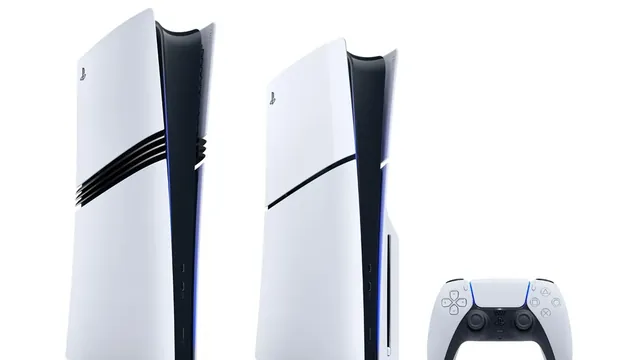
The PS5 data transfer tool copies your games, saved data, user accounts and settings from a PS4 or an older PS5 to a new PS5 or PS5 Pro over your home network. Sign in to the same PlayStation account on both consoles, update both to the latest system software, sync your trophies, then pick Data Transfer during the new console's first setup, or later under Settings, System, System Software. The new console restarts partway through, and you can play each game as soon as its thumbnail appears while the rest keeps copying.
That makes Black Friday the busiest week of the year for this one menu. A PS4 owner moving up, a PS5 owner trading up to a PS5 Pro, a family giving the old console to a younger player: all of them hit the same screens, and a few of Sony's rules decide whether the evening goes smoothly or ends with a missing save.
What you need before a PS5 data transfer
Sony calls the old machine the source console and the new PS5 the destination console. Its support page lists four things to do on the source console before you start:
- Sign in to the same account that is signed in on the new PS5.
- Install the latest system software. On a PS5 that means the current PS5 update; a PS4 has its own update under its settings.
- Sync your trophy information by hand, so no unlocked trophy is left behind.
- Connect both consoles to the same network, through a LAN cable or over Wi-Fi.
Both consoles need power, and only the new one needs a TV, through the HDMI cable in its box. The old console can stay unplugged from any screen.
Sony recommends a wired link when your consoles usually sit on Wi-Fi, because a LAN cable moves the data faster. If both consoles already plug into the same router with cables, you don't need a third cable between them.
Two warnings matter more than anything else on the page. Don't turn off either console during the transfer, and don't change network settings or run an internet connection test while it runs. Sony says either one can damage or lose data. One more limit: a transfer runs from one console to one PS5. If you own a PS4 and an older PS5, pick the one with the data you care about most, and bring the rest over by one of the other routes below.
How to transfer data from PS4 to PS5
The easiest moment is the first setup of the new console. Turn the old PS4 on, start the new PS5, and when setup reaches the data transfer stage, follow the on-screen steps. Done this way, the transfer brings every user who has ever signed in on that PS4.
If you already finished setup, the tool is still there:
- Make sure the source console is on.
- On the new PS5, go to Settings, then System, then System Software.
- Select Data Transfer, then Continue, and follow the on-screen instructions.
The new console restarts on its own during the process. After that restart you can use it, even though game data keeps copying in the background. Each game shows a thumbnail in your games home when it is ready to play. To watch the progress, open the control center and select Downloads/Uploads.
One catch applies after setup. Sony says that once initial setup is done, the tool moves only the saved data of the user who is logged in. A household with three players on one PS4 gets everyone's saves in a single pass only during first setup. Otherwise each player signs in and runs it in turn.
Login passcodes travel too, so the new console asks for the same passcode the old one used. And anything that already sits on the new PS5, such as a game you installed first or a save you already made, stays as it is: Sony says data already stored on the destination console doesn't transfer.
What data transfers from PS4 and PS5
The two source consoles don't send exactly the same things. This is how Sony's support page lists them.
| Data | From a PS4 | From a PS5 |
|---|---|---|
| User and account information | Every user who ever signed in on it | Every user, including users who never signed in on it |
| Saved data | For games playable on PS5 | For games playable on PS5 |
| Games | Those playable on PS5 | Those playable on PS5 |
| Screenshots and video clips | Not listed | Yes |
| Console settings | Language, login, power saving and similar | Language, login, power saving and similar |
The phrase that keeps repeating is "playable on PS5." Sony says the majority of PS4 games run on PS5, and it keeps a short list of exceptions marked "Playable on: PS4 only" in PlayStation Store. The current list names six games: Afro Samurai 2 Revenge of Kuma Volume One, Just Deal With It!, Robinson: The Journey, We Sing, Hitman Go: Definitive Edition and Shadwen. Keep the PS4 if one of those still matters to you.
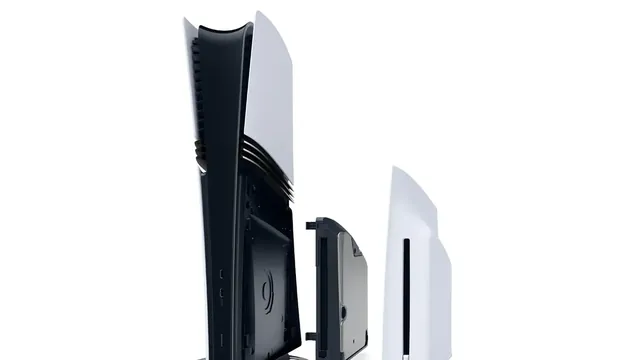
Disc games are the other gap. Data Transfer copies installed game data, but a disc game still needs its disc in the drive each time you play. Sony's backward compatibility page says PS4 discs can't be used on a PS5 Digital Edition without a disc drive, and no PS5 reads PS3 discs. That also rules out PS4 digital games that came through the old PS3-disc upgrade program and need the PS3 disc to run.
How to transfer data from PS5 to PS5 Pro
Moving from one PS5 to another uses the same Data Transfer screen, and it brings the most data of any route: every user on the old console, their saves, installed games, screenshots, video clips and settings. Sony's guide for the PS5 Pro launch spells out the same steps for owners coming from a PS5, a PS4 Pro or a PS4.
Owners of a bigger setup have two faster shortcuts for game data, because the internal copy can take hours on a crowded drive.
- M.2 SSD. If you added an M.2 drive, an internal solid-state drive that slides into the expansion slot, you can take it out of the old PS5 and fit it in the new one. Sony says a drive moved between two PS5 consoles doesn't need formatting, so the games on it are ready once the console starts. Keep the heatsink on it: Sony doesn't allow an M.2 drive without one.
- USB extended storage. A USB drive you already use for games plugs straight into the new console. Sony says a drive formatted as extended storage on a PS4 or another PS5 doesn't need formatting again. PS4 games play straight from it, while PS5 games have to be copied back to console storage first.

Sony's own tool skips one thing worth knowing before you trade in an old PS5: it can't put PS5 saves on a USB stick. The support page says PS5 saved data can't be copied to a USB drive. A full console backup to USB, under Back Up and Restore, is a separate feature, and Sony says a restore needs the same or a newer system software version than the one the backup was made on.
Other ways to move PS4 and PS5 saves
Data Transfer needs both consoles at the same time. If the old one is already gone, or you only want a few games, Sony lists other routes.
| What you want to move | Route | What you need |
|---|---|---|
| Digital games | Download them again from the game library | Nothing beyond your account |
| Disc games | Insert the disc and install | A PS5 with a disc drive |
| PS5 saves | PlayStation Plus cloud storage, auto-sync | A PlayStation Plus membership |
| PS4 saves | Cloud storage, or a USB drive | Plus for the cloud; any USB drive for the copy |
| Games on extended storage | Plug the USB drive into the new PS5 | The same drive |
| Games on an M.2 SSD | Move the drive to the new PS5 | A screwdriver and the heatsink |
PlayStation Plus cloud storage holds up to 100 GB of PS5 saves and another 100 GB of PS4 saves, and it works in a slightly different way for each generation. For PS5 games, auto-sync keeps the console and the cloud on the most recent save. For PS4 games, the console uploads saves by itself, but you download them to the PS5 by hand. The menu sits under Settings, then Saved Data and Game/App Settings. A faster path: highlight a game in your games home, press the options button and pick Upload/Download Saved Data.
Some PS4 games you own can also become the PS5 version. Sony's upgrade page says you open the PS5 game's hub in PlayStation Store and pick the upgrade offer. Depending on the game it can be free or cost money, and PS4 games claimed as a PlayStation Plus monthly game don't qualify unless the offer says so. A disc upgrade needs a PS5 with a disc drive, the disc must match the region of your account, and the disc has to stay in the drive whenever you play.
Console Sharing and Offline Play on a new PS5
This setting decides who can play your games on a console and whether they work without an internet connection. With it on, anyone who uses that PS5 can play your purchased and downloaded games, including offline, and gets some of your PlayStation Plus benefits. Sony allows it on one PS5 at a time.
Sony's support page says the setting switches on by itself only on the first PS5 you ever signed in on. On a second console, turn it off on the old PS5 first, then turn it on on the new one. Both switches sit in the same place: Settings, then Users and Accounts, then Other, then Console Sharing and Offline Play, then Enable or Disable. If the old console already left the house, sign in to Account Management on the web and deactivate all devices. Sony allows that once every six months, so don't spend it lightly. Your subscriptions themselves need no moving: Sony says they apply to your account as soon as you sign in on the new console.
Restoring a console from a USB backup turns the setting off, Sony warns, so turn it back on afterward to keep access to your subscriptions and content.
Child accounts and PS5 data transfer
A child account can't run a transfer during the first setup of the new console. Sony gives two ways around it. You can finish setup for the child account and then transfer from the System Software menu. Or a parent can set up the new PS5 with an adult account and bring both the adult's and the child's data across during that first setup.
For a family buying a second console this season, the second way is the quicker one: one pass, everyone's saves, and the child's profile arrives with its settings in place.
What to do with the old console
Data Transfer copies and doesn't delete anything, so the old console still holds everything. Before you sell it, trade it in or hand it on, Sony suggests three steps:
- Sync your trophies one last time.
- Take out the M.2 SSD if you want to keep it and its games.
- Reset the console. On a PS5 that is Settings, then System, then System Software, then Reset Options, then Reset Your Console. On a PS4 it is Settings, then Initialization, then Initialize PS4, then Full.
Sony warns that a reset can't be undone, so finish the transfer and check your saves on the new console first. If the new PS5 will carry big games, our storage guide covers how much space they take, and our roundup of PS5 Black Friday deals lists what this week's prices bring.
FAQ
Can I keep playing while the transfer runs?
Yes. Once the new console restarts, each game shows up in your games home as soon as it is ready, and you can play it while the rest of the data keeps copying.
Do I need PlayStation Plus to move my saves?
Only for the cloud route. Data Transfer copies saved data over your home network with no subscription, and PS4 saves can also travel on a USB drive.
What happens to my old PS4 or PS5 after the transfer?
Nothing is deleted from it. Before you sell or give it away, sync your trophies, take out any M.2 drive you want to keep and reset the console from its settings.
Add VR.one as a preferred source on Google and our stories show up more often in your Top Stories.